
$ npm install @exodus/react-native-svg

react-native-svg provides SVG support to React Native on iOS and Android, and a compatibility layer for the web.
With Expo, this is pre-installed. Jump ahead to Usage
Install library from npm
yarn add react-native-svg
Link native code
With autolinking (react-native 0.60+)
cd ios && pod install
Pre 0.60
react-native link react-native-svg
Due to breaking changes in react-native, the version given in the left column (and higher versions) of react-native-svg only supports the react-native version in the right column (and higher versions, if possible).
It is recommended to use the version of react given in the peer dependencies of the react-native version you are using.
The latest version of react-native-svg should always work in a clean react-native project.
| react-native-svg | react-native |
|---|---|
| 3.2.0 | 0.29 |
| 4.2.0 | 0.32 |
| 4.3.0 | 0.33 |
| 4.4.0 | 0.38 |
| 4.5.0 | 0.40 |
| 5.1.8 | 0.44 |
| 5.2.0 | 0.45 |
| 5.3.0 | 0.46 |
| 5.4.1 | 0.47 |
| 5.5.1 | >=0.50 |
| >=6 | >=0.50 |
| >=7 | >=0.57.4 |
| >=8 | >=0.57.4 |
| >=9 | >=0.57.4 |
Or, include this PR manually for v7+ stability on android for older RN ( included in 0.57-stable and newer).
The latest version of v6, v7, v8 and v9 should all work in the latest react-native version.
v7 and newer requires the patch for making android thread safe, to get native animation support.
yarn add react-native-svg In RN 0.60+, this is all you should ever need to do get Android working. Before this, react-native link was responsible for the following steps:
Append the following lines to android/settings.gradle:
include ':react-native-svg'
project(':react-native-svg').projectDir = new File(rootProject.projectDir, '../node_modules/react-native-svg/android')
Insert the following lines inside the dependencies block in android/app/build.gradle:
implementation project(':react-native-svg')
Open up android/app/src/main/java/[...]/MainApplication.java
import com.horcrux.svg.SvgPackage; to the imports at the top of the filenew SvgPackage() to the list returned by the getPackages() method. Add a comma to the previous item if there's already something there.To install react-native-svg on iOS visit the link referenced above or do the following (react-native link should do this for you):
RNSVG.xcodeproj file (located in .../node_modules/react-native-svg/ios) into the Libraries directory shown in XCode.RNSVG.xcodeproj file you just added to XCode until you see: libRNSVG.a (located in RNSVG.xcodeproj > Products )libRNSVG.a into the Link Binary With Libraries section (located in Build Phases which may be found at the top of the XCode window)Alternatively, you can use CocoaPods to manage your native (Objective-C and Swift) dependencies:
pod 'RNSVG', :path => '../node_modules/react-native-svg'
If cocoapods is used and if error RNSVGImage.m:12:9: 'React/RCTImageLoader.h' file not found occurs:
Add the following entry in Podfile:
    pod 'React', :path => '../node_modules/react-native', :subspecs => [
        [...]
        'RCTImage', # <-- Add RCTImage
    ]
and run pod install from ios folder
When Proguard is enabled (which it is by default for Android release builds), it causes runtine error
To avoid this, add an exception to android/app/proguard-rules.pro:
-keep public class com.horcrux.svg.** {*;}
If you have build errors, then it might be caused by caching issues, please try:
watchman watch-del-all
rm -fr $TMPDIR/react-*
react-native start --reset-cache

Or,

rm -rf node_modules
yarn
react-native start --reset-cache
If you have unexpected behavior, please create a clean project with the latest versions of react-native and react-native-svg
react-native init CleanProject
cd CleanProject/
yarn add react-native-svg
cd ios && pod install && cd ..
Make a reproduction of the problem in App.js
react-native run-ios
react-native run-android
Verify that it is still an issue with the latest version as specified in the previous step. If so, open a new issue, include the entire App.js file, specify what platforms you've tested, and the results of running this command:
react-native info
If you suspect that you've found a spec conformance bug, then you can test using your component in a react-native-web project by forking this codesandbox, to see how different browsers render the same content: https://codesandbox.io/s/pypn6mn3y7 If any evergreen brower with significant userbase or other svg user agent renders some svg content better, or supports more of the svg and related specs, please open an issue asap.
Here's a simple example. To render output like this:

Use the following code:
import Svg, {
  Circle,
  Ellipse,
  G,
  Text,
  TSpan,
  TextPath,
  Path,
  Polygon,
  Polyline,
  Line,
  Rect,
  Use,
  Image,
  Symbol,
  Defs,
  LinearGradient,
  RadialGradient,
  Stop,
  ClipPath,
  Pattern,
  Mask,
} from 'react-native-svg';

/* Use this if you are using Expo
import { Svg } from 'expo';
const { Circle, Rect } = Svg;
*/

import React from 'react';
import { View, StyleSheet } from 'react-native';

export default class SvgExample extends React.Component {
  render() {
    return (
      <View
        style={[
          StyleSheet.absoluteFill,
          { alignItems: 'center', justifyContent: 'center' },
        ]}
      >
        <Svg height="50%" width="50%" viewBox="0 0 100 100">
          <Circle
            cx="50"
            cy="50"
            r="45"
            stroke="blue"
            strokeWidth="2.5"
            fill="green"
          />
          <Rect
            x="15"
            y="15"
            width="70"
            height="70"
            stroke="red"
            strokeWidth="2"
            fill="yellow"
          />
        </Svg>
      </View>
    );
  }
}
import * as React from 'react';
import { SvgUri } from 'react-native-svg';

export default () => (
  <SvgUri
    width="100%"
    height="100%"
    uri="http://thenewcode.com/assets/images/thumbnails/homer-simpson.svg"
  />
);
Try react-native-svg-transformer to get compile time conversion and cached transformations. https://github.com/kristerkari/react-native-svg-transformer#installation-and-configuration https://github.com/kristerkari/react-native-svg-transformer#for-react-native-v057-or-newer--expo-sdk-v3100-or-newer
metro.config.js
const { getDefaultConfig } = require('metro-config');

module.exports = (async () => {
  const {
    resolver: { sourceExts, assetExts },
  } = await getDefaultConfig();
  return {
    transformer: {
      babelTransformerPath: require.resolve('react-native-svg-transformer'),
    },
    resolver: {
      assetExts: assetExts.filter(ext => ext !== 'svg'),
      sourceExts: [...sourceExts, 'svg'],
    },
  };
})();
Import your .svg file inside a React component:
import Logo from './logo.svg';
You can then use your image as a component:
<Logo width={120} height={40} />
Alternatively, you can use SvgXml with babel-plugin-inline-import, but with transforms done at run-time.
.babelrc
{
  "presets": ["module:metro-react-native-babel-preset"],
  "plugins": [
    [
      "babel-plugin-inline-import",
      {
        "extensions": [".svg"]
      }
    ]
  ]
}
App.js
import * as React from 'react';
import { SvgXml } from 'react-native-svg';
import testSvg from './test.svg';
export default () => <SvgXml width="200" height="200" xml={testSvg} />;
import * as React from 'react';
import { SvgXml } from 'react-native-svg';

const xml = `
  <svg width="32" height="32" viewBox="0 0 32 32">
    <path
      fill-rule="evenodd"
      clip-rule="evenodd"
      fill="url(#gradient)"
      d="M4 0C1.79086 0 0 1.79086 0 4V28C0 30.2091 1.79086 32 4 32H28C30.2091 32 32 30.2091 32 28V4C32 1.79086 30.2091 0 28 0H4ZM17 6C17 5.44772 17.4477 5 18 5H20C20.5523 5 21 5.44772 21 6V25C21 25.5523 20.5523 26 20 26H18C17.4477 26 17 25.5523 17 25V6ZM12 11C11.4477 11 11 11.4477 11 12V25C11 25.5523 11.4477 26 12 26H14C14.5523 26 15 25.5523 15 25V12C15 11.4477 14.5523 11 14 11H12ZM6 18C5.44772 18 5 18.4477 5 19V25C5 25.5523 5.44772 26 6 26H8C8.55228 26 9 25.5523 9 25V19C9 18.4477 8.55228 18 8 18H6ZM24 14C23.4477 14 23 14.4477 23 15V25C23 25.5523 23.4477 26 24 26H26C26.5523 26 27 25.5523 27 25V15C27 14.4477 26.5523 14 26 14H24Z"
    />
    <defs>
      <linearGradient
        id="gradient"
        x1="0"
        y1="0"
        x2="8.46631"
        y2="37.3364"
        gradient-units="userSpaceOnUse">
        <stop offset="0" stop-color="#FEA267" />
        <stop offset="1" stop-color="#E75A4C" />
      </linearGradient>
    </defs>
  </svg>
`;

export default () => <SvgXml xml={xml} width="100%" height="100%" />;
| Name | Default | Description |
|---|---|---|
| fill | '#000' | The fill prop refers to the color inside the shape. |
| fillOpacity | 1 | This prop specifies the opacity of the color or the content the current object is filled with. |
| fillRule | nonzero | The fillRule prop determines what side of a path is inside a shape, which determines how fill will paint the shape, can be nonzero or evenodd |
| stroke | 'none' | The stroke prop controls how the outline of a shape appears. |
| strokeWidth | 1 | The strokeWidth prop specifies the width of the outline on the current object. |
| strokeOpacity | 1 | The strokeOpacity prop specifies the opacity of the outline on the current object. |
| strokeLinecap | 'square' | The strokeLinecap prop specifies the shape to be used at the end of open subpaths when they are stroked. Can be either 'butt', 'square' or 'round'. |
| strokeLinejoin | 'miter' | The strokeLinejoin prop specifies the shape to be used at the corners of paths or basic shapes when they are stroked. Can be either 'miter', 'bevel' or 'round'. |
| strokeDasharray | [] | The strokeDasharray prop controls the pattern of dashes and gaps used to stroke paths. |
| strokeDashoffset | null | The strokeDashoffset prop specifies the distance into the dash pattern to start the dash. |
| x | 0 | Translate distance on x-axis. |
| y | 0 | Translate distance on y-axis. |
| rotation | 0 | Rotation degree value on the current object. |
| scale | 1 | Scale value on the current object. |
| origin | 0, 0 | Transform origin coordinates for the current object. |
| originX | 0 | Transform originX coordinates for the current object. |
| originY | 0 | Transform originY coordinates for the current object. |
<Svg height="100" width="100">
  <Rect x="0" y="0" width="100" height="100" fill="black" />
  <Circle cx="50" cy="50" r="30" fill="yellow" />
  <Circle cx="40" cy="40" r="4" fill="black" />
  <Circle cx="60" cy="40" r="4" fill="black" />
  <Path d="M 40 60 A 10 10 0 0 0 60 60" stroke="black" />
</Svg>
Colors set in the Svg element are inherited by its children:
<Svg
  width="130"
  height="130"
  fill="blue"
  stroke="red"
  color="green"
  viewBox="-16 -16 544 544"
>
  <Path
    d="M318.37,85.45L422.53,190.11,158.89,455,54.79,350.38ZM501.56,60.2L455.11,13.53a45.93,45.93,0,0,0-65.11,0L345.51,58.24,449.66,162.9l51.9-52.15A35.8,35.8,0,0,0,501.56,60.2ZM0.29,497.49a11.88,11.88,0,0,0,14.34,14.17l116.06-28.28L26.59,378.72Z"
    strokeWidth="32"
  />
  <Path d="M0,0L512,512" stroke="currentColor" strokeWidth="32" />
</Svg>

Code explanation:
The
<Svg width="200" height="60">
  <Rect
    x="25"
    y="5"
    width="150"
    height="50"
    fill="rgb(0,0,255)"
    strokeWidth="3"
    stroke="rgb(0,0,0)"
  />
</Svg>

Code explanation:
The
<Svg height="100" width="100">
  <Circle cx="50" cy="50" r="50" fill="pink" />
</Svg>

Code explanation:
The
An ellipse is closely related to a circle. The difference is that an ellipse has an x and a y radius that differs from each other, while a circle has equal x and y radius.
<Svg height="100" width="110">
  <Ellipse
    cx="55"
    cy="55"
    rx="50"
    ry="30"
    stroke="purple"
    strokeWidth="2"
    fill="yellow"
  />
</Svg>

Code explanation:
The
<Svg height="100" width="100">
  <Line x1="0" y1="0" x2="100" y2="100" stroke="red" strokeWidth="2" />
</Svg>

Code explanation:
The
<Svg height="100" width="100">
  <Polygon
    points="40,5 70,80 25,95"
    fill="lime"
    stroke="purple"
    strokeWidth="1"
  />
</Svg>

Code explanation:
The
<Svg height="100" width="100">
  <Polyline
    points="10,10 20,12 30,20 40,60 60,70 95,90"
    fill="none"
    stroke="black"
    strokeWidth="3"
  />
</Svg>

Code explanation:
The
The following commands are available for path data:
Note: All of the commands above can also be expressed with lower letters. Capital letters means absolutely positioned, lower cases means relatively positioned. See Path document of SVG to know parameters for each command.
<Svg height="100" width="100">
  <Path
    d="M25 10 L98 65 L70 25 L16 77 L11 30 L0 4 L90 50 L50 10 L11 22 L77 95 L20 25"
    fill="none"
    stroke="red"
  />
</Svg>

The
<Svg height="60" width="200">
  <Text
    fill="none"
    stroke="purple"
    fontSize="20"
    fontWeight="bold"
    x="100"
    y="20"
    textAnchor="middle"
  >
    STROKED TEXT
  </Text>
</Svg>

The
<Svg height="160" width="200">
  <Text y="20" dx="5 5">
    <TSpan x="10">tspan line 1</TSpan>
    <TSpan x="10" dy="15">
      tspan line 2
    </TSpan>
    <TSpan x="10" dx="10" dy="15">
      tspan line 3
    </TSpan>
  </Text>
  <Text x="10" y="60" fill="red" fontSize="14">
    <TSpan dy="5 10 20">12345</TSpan>
    <TSpan fill="blue" dy="15" dx="0 5 5">
      <TSpan>6</TSpan>
      <TSpan>7</TSpan>
    </TSpan>
    <TSpan dx="0 10 20" dy="0 20" fontWeight="bold" fontSize="12">
      89a
    </TSpan>
  </Text>
  <Text y="140" dx="0 5 5" dy="0 -5 -5">
    delta on text
  </Text>
</Svg>

In addition to text drawn in a straight line, SVG also includes the ability to place text along the shape of a
<Svg height="100" width="200">
  <Defs>
    <Path id="path" d={path} />
  </Defs>
  <G y="20">
    <Text fill="blue">
      <TextPath href="#path" startOffset="-10%">
        We go up and down,
        <TSpan fill="red" dy="5,5,5">
          then up again
        </TSpan>
      </TextPath>
    </Text>
    <Path d={path} fill="none" stroke="red" strokeWidth="1" />
  </G>
</Svg>

The
<Svg height="100" width="200">
  <G rotation="50" origin="100, 50">
    <Line x1="60" y1="10" x2="140" y2="10" stroke="#060" />

    <Rect x="60" y="20" height="50" width="80" stroke="#060" fill="#060" />

    <Text x="100" y="75" stroke="#600" fill="#600" textAnchor="middle">
      Text grouped with shapes
    </Text>
  </G>
</Svg>

The
<Svg height="100" width="300">
  <Defs>
    <G id="shape">
      <G>
        <Circle cx="50" cy="50" r="50" />
        <Rect x="50" y="50" width="50" height="50" />
        <Circle cx="50" cy="50" r="5" fill="blue" />
      </G>
    </G>
  </Defs>
  <Use href="#shape" x="20" y="0" />
  <Use href="#shape" x="170" y="0" />
</Svg>
This example shows a
Before the
The

The SVG
<Svg height="150" width="110">
  <Symbol id="symbol" viewBox="0 0 150 110" width="100" height="50">
    <Circle cx="50" cy="50" r="40" strokeWidth="8" stroke="red" fill="red" />
    <Circle
      cx="90"
      cy="60"
      r="40"
      strokeWidth="8"
      stroke="green"
      fill="white"
    />
  </Symbol>

  <Use href="#symbol" x="0" y="0" />
  <Use href="#symbol" x="0" y="50" width="75" height="38" />
  <Use href="#symbol" x="0" y="100" width="50" height="25" />
</Svg>

The
The element allows a raster image to be included in an Svg componenet.
<Svg height="100" width="100">
  <Defs>
    <ClipPath id="clip">
      <Circle cx="50%" cy="50%" r="40%" />
    </ClipPath>
  </Defs>
  <Rect x="0" y="0" width="100%" height="100%" fill="red" />
  <Rect x="5%" y="5%" width="50%" height="90%" />

  <Image
    x="5%"
    y="5%"
    width="50%"
    height="90%"
    preserveAspectRatio="xMidYMid slice"
    opacity="0.5"
    href={require('../image.jpg')}
    clipPath="url(#clip)"
  />
  <Text
    x="50"
    y="50"
    textAnchor="middle"
    fontWeight="bold"
    fontSize="16"
    fill="blue"
  >
    HOGWARTS
  </Text>
</Svg>

The
<Svg height="100" width="100">
  <Defs>
    <RadialGradient
      id="grad"
      cx="50%"
      cy="50%"
      rx="50%"
      ry="50%"
      fx="50%"
      fy="50%"
      gradientUnits="userSpaceOnUse"
    >
      <Stop offset="0%" stopColor="#ff0" stopOpacity="1" />
      <Stop offset="100%" stopColor="#00f" stopOpacity="1" />
    </RadialGradient>
    <ClipPath id="clip">
      <G scale="0.9" x="10">
        <Circle cx="30" cy="30" r="20" />
        <Ellipse cx="60" cy="70" rx="20" ry="10" />
        <Rect x="65" y="15" width="30" height="30" />
        <Polygon points="20,60 20,80 50,70" />
        <Text
          x="50"
          y="30"
          fontSize="32"
          fonWeight="bold"
          textAnchor="middle"
          scale="1.2"
        >
          Q
        </Text>
      </G>
    </ClipPath>
  </Defs>
  <Rect
    x="0"
    y="0"
    width="100"
    height="100"
    fill="url(#grad)"
    clipPath="url(#clip)"
  />
</Svg>

The
Linear gradients can be defined as horizontal, vertical or angular gradients:
<Svg height="150" width="300">
  <Defs>
    <LinearGradient id="grad" x1="0" y1="0" x2="170" y2="0">
      <Stop offset="0" stopColor="rgb(255,255,0)" stopOpacity="0" />
      <Stop offset="1" stopColor="red" stopOpacity="1" />
    </LinearGradient>
  </Defs>
  <Ellipse cx="150" cy="75" rx="85" ry="55" fill="url(#grad)" />
</Svg>
Code explanation:

NOTICE: LinearGradient also supports percentage as prop:
<LinearGradient id="grad" x1="0%" y1="0%" x2="100%" y2="0%">
  <Stop offset="0%" stopColor="rgb(255,255,0)" stopOpacity="0" />
  <Stop offset="100%" stopColor="red" stopOpacity="1" />
</LinearGradient>
This result is same as the example before. But it's recommend to use exact number instead; it has performance advantages over using percentages.
The
<Svg height="150" width="300">
  <Defs>
    <RadialGradient
      id="grad"
      cx="150"
      cy="75"
      rx="85"
      ry="55"
      fx="150"
      fy="75"
      gradientUnits="userSpaceOnUse"
    >
      <Stop offset="0" stopColor="#ff0" stopOpacity="1" />
      <Stop offset="1" stopColor="#83a" stopOpacity="1" />
    </RadialGradient>
  </Defs>
  <Ellipse cx="150" cy="75" rx="85" ry="55" fill="url(#grad)" />
</Svg>
Code explanation:

In SVG, you can specify that any other graphics object or ‘G’ element can be used as an alpha mask for compositing the current object into the background.
A mask is defined with a ‘Mask’ element. A mask is used/referenced using the ‘mask’ property.
A ‘Mask’ can contain any graphical elements or container elements such as a ‘G’.
The
https://www.w3.org/TR/SVG11/images/masking/mask01.svg
<Svg width="100%" height="100%" viewBox="0 0 800 300">
  <Defs>
    <LinearGradient
      id="Gradient"
      gradientUnits="userSpaceOnUse"
      x1="0"
      y1="0"
      x2="800"
      y2="0"
    >
      <Stop offset="0" stopColor="white" stopOpacity="0" />
      <Stop offset="1" stopColor="white" stopOpacity="1" />
    </LinearGradient>
    <Mask
      id="Mask"
      maskUnits="userSpaceOnUse"
      x="0"
      y="0"
      width="800"
      height="300"
    >
      <Rect x="0" y="0" width="800" height="300" fill="url(#Gradient)" />
    </Mask>
    <Text
      id="Text"
      x="400"
      y="200"
      fontFamily="Verdana"
      fontSize="100"
      textAnchor="middle"
    >
      Masked text
    </Text>
  </Defs>
  <Rect x="0" y="0" width="800" height="300" fill="#FF8080" />
  <Use href="#Text" fill="blue" mask="url(#Mask)" />
  <Use href="#Text" fill="none" stroke="black" stroke-width="2" />
</Svg>
Code explanation: https://www.w3.org/TR/SVG11/masking.html#MaskElement
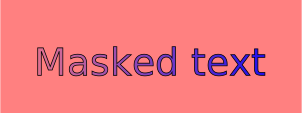
A pattern is used to fill or stroke an object using a pre-defined graphic object which can be replicated ("tiled") at fixed intervals in x and y to cover the areas to be painted. Patterns are defined using a ‘pattern’ element and then referenced by properties ‘fill’ and ‘stroke’ on a given graphics element to indicate that the given element shall be filled or stroked with the referenced pattern.
The
https://www.w3.org/TR/SVG11/images/pservers/pattern01.svg
<Svg width="100%" height="100%" viewBox="0 0 800 400">
  <Defs>
    <Pattern
      id="TrianglePattern"
      patternUnits="userSpaceOnUse"
      x="0"
      y="0"
      width="100"
      height="100"
      viewBox="0 0 10 10"
    >
      <Path d="M 0 0 L 7 0 L 3.5 7 z" fill="red" stroke="blue" />
    </Pattern>
  </Defs>
  <Rect fill="none" stroke="blue" x="1" y="1" width="798" height="398" />
  <Ellipse
    fill="url(#TrianglePattern)"
    stroke="black"
    stroke-width="5"
    cx="400"
    cy="200"
    rx="350"
    ry="150"
  />
</Svg>
Code explanation: https://www.w3.org/TR/SVG11/pservers.html#PatternElement
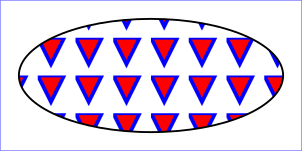
Touch events are supported in react-native-svg. These include:
disabledonPressonPressInonPressOutonLongPressdelayPressIndelayPressOutdelayLongPressYou can use these events to provide interactivity to your react-native-svg components.
<Circle
  cx="50%"
  cy="50%"
  r="38%"
  fill="red"
  onPress={() => alert('Press on Circle')}
/>

For more examples of touch in action, checkout the TouchEvents.js examples.
git clone https://github.com/magicismight/react-native-svg-example.git
cd react-native-svg-example
yarn

# run Android: react-native run-android
# run iOS: react-native run-ios